# How to Install aaPanel on Ubuntu Server (Step-by-Step Guide)
Meta Title:
Install aaPanel on Ubuntu Server – Complete Step-by-Step Guide (2025)
Meta Description:
Learn how to install aaPanel on Ubuntu Server with detailed commands, troubleshooting tips, security hardening, and best practices. Beginner-friendly and SEO-ready.
---
## What is aaPanel?
aaPanel is a
free and lightweight web hosting control panel
that allows you to manage:
Websites (Nginx / Apache)
Databases (MySQL / MariaDB)
FTP accounts
SSL certificates (Let’s Encrypt)
Firewall and server security
It is an excellent alternative to cPanel for VPS and cloud servers.
---
## System Requirements
Before installing aaPanel, make sure your server meets the following requirements:
OS:
Ubuntu 20.04 / 22.04 (recommended)
Architecture: x86_64
RAM:
Minimum 1 GB (2 GB recommended)
Disk Space: At least 10 GB
Root Access:
Required
*
Fresh Server:
No existing web servers (Apache/Nginx) installed
---
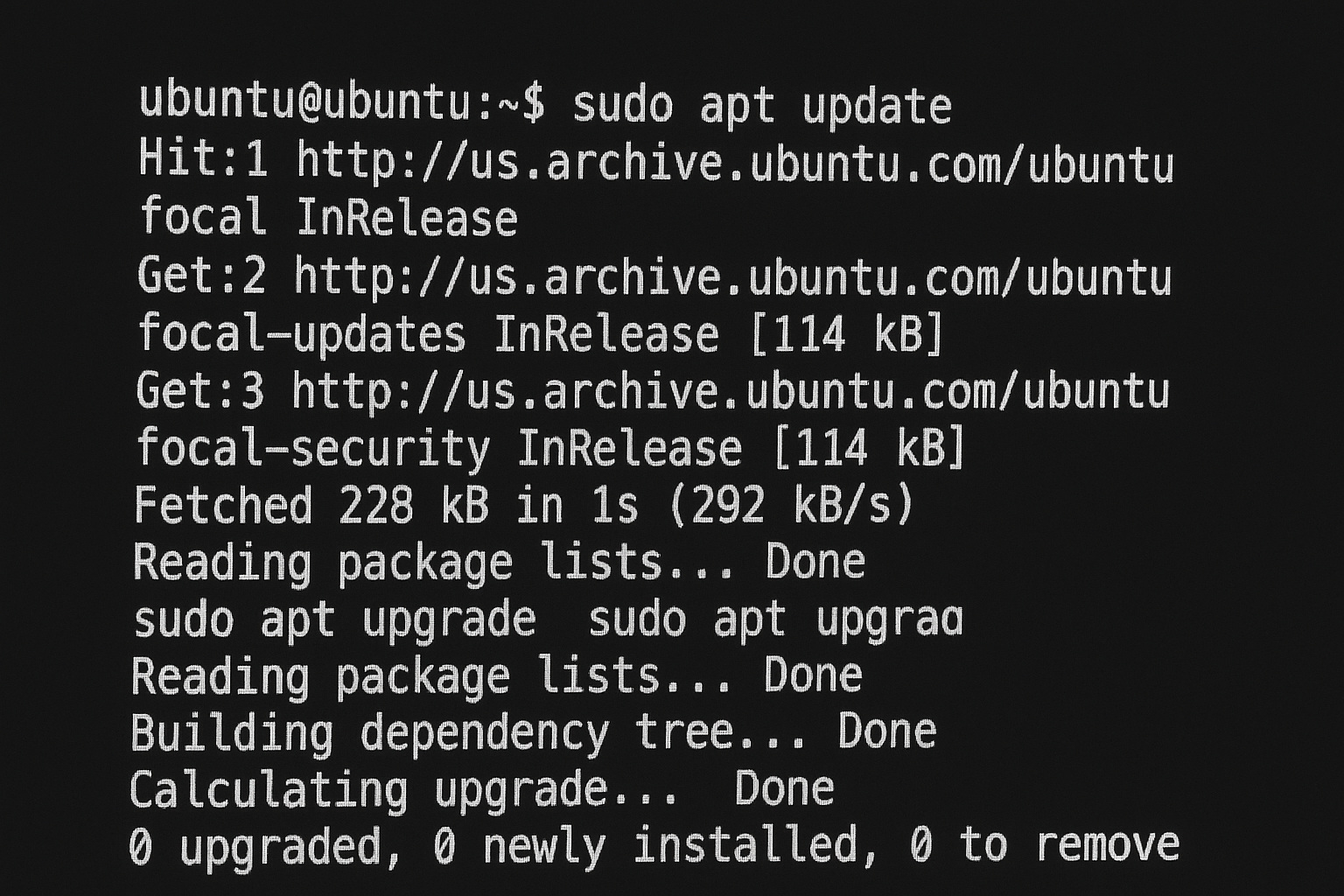
## Step 1: Update Ubuntu Server
Always start by updating your system packages.
apt update && apt upgrade -y
Reboot if the kernel is updated:
reboot
---
## Step 2: Set Server Timezone (Recommended)
timedatectl set-timezone UTC
Verify:
timedatectl
---
## Step 3: Install Required Dependencies
Install essential packages required by aaPanel:
apt install -y wget curl sudo lsb-release ca-certificates
---
## Step 4: Disable Conflicting Services
If Apache or Nginx is already installed, remove them:
apt remove apache2 nginx -y
---
## Step 5: Download and Install aaPanel
Run the official aaPanel installation script:
wget -O install.sh http://www.aapanel.com/script/install-ubuntu_6.0.sh
bash install.sh
⏳ Installation time:
5–10 minutes
depending on server speed.
---
## Step 6: aaPanel Login Information
After installation, you will see output similar to this:
aaPanel Address: http://SERVER_IP:8888
username: admin
password:
**
🔐
Important:
Save this information securely.
---
## Step 7: Open aaPanel Port in Firewall
### If using UFW:
ufw allow 8888/tcp
ufw reload
### If UFW is not enabled:
ufw enable
---
## Step 8: Access aaPanel Dashboard
Open your browser and visit:
http://YOUR_SERVER_IP:8888
Log in using the credentials provided.
---
## Step 9: Install Recommended Stack
aaPanel will prompt you to install a web stack:
Recommended setup:
Web Server: Nginx
Database:
MySQL 5.7 or MariaDB 10.6
*
PHP Versions:
7.4, 8.0, 8.1
Click
One-Click Install
and wait for completion.
---
## Step 10: Secure aaPanel
### Change Default Port (Optional)
bt
Select
Change panel port
.
---
### Enable SSL for aaPanel
Go to Panel Settings → SSL
Enable
Let’s Encrypt
---
### Enable Firewall Rules
Go to Security → Firewall
Allow only required ports:
22 (SSH)
80 (HTTP)
443 (HTTPS)
Custom aaPanel port
---
## Common Troubleshooting
### aaPanel Not Opening in Browser
✔ Check if aaPanel is running:
bt status
✔ Restart aaPanel:
bt restart
---
### Port 8888 Not Accessible
netstat -tulnp | grep 8888
If not listening:
bt restart
---
### Forgot aaPanel Password
bt 5
This will reset the admin password.
---
### Installation Failed
✔ Ensure clean server
✔ Check logs:
cat /www/server/panel/logs/install.log
---
## Uninstall aaPanel (If Needed)
wget http://www.aapanel.com/script/uninstall.sh
bash uninstall.sh
---
## Best SEO Practices After Installation
Enable Gzip Compression
Use
HTTP/2
Install Redis Cache
Enable
Let’s Encrypt SSL
Optimize PHP-FPM settings
---
## AdSense Optimization Tips for Hosting Blogs
To maximize AdSense earnings on your aaPanel tutorial website:
### Recommended Ad Placements
Above the fold:
After the introduction section
In-content ads: After every 2–3 sections
Sticky sidebar ad:
Desktop view
Anchor ads: Enabled for mobile users
### High CPC Keywords to Target
Ubuntu server hosting
VPS control panel
cPanel alternative
Linux web hosting
Server management panel
### Content Optimization
Use short paragraphs (2–3 lines)
Add screenshots/images after each major step
Use comparison tables (aaPanel vs cPanel)
Internal link to VPS, hosting, and security articles
### Page Speed & UX
Enable caching (Redis)
Lazy-load images
Use WebP image format
Enable HTTP/2 & Brotli
---
## Conclusion
Installing aaPanel on Ubuntu Server is simple, fast, and powerful. It provides an intuitive interface to manage websites, databases, and server security without complex CLI commands.
With proper optimization, this tutorial can rank well on Google and generate
consistent AdSense revenue
for tech and hosting blogs.
---
Keywords:
install aaPanel Ubuntu, aaPanel Ubuntu server, aaPanel installation guide, Ubuntu control panel, aaPanel tutorial